In this page
In short
- Start at Settings › Integrations › ZATCA e-invoicing, from the owner account only.
- You need the VAT number and the registered address, and a 6-digit code from the Fatoora portal that lasts one hour.
- One certificate covers every POS in every branch, and reported invoices show on the same page.
Phase 1: nothing to set up
The tax QR code goes on every invoice by itself once "VAT registration number" and "Seller name (Arabic)" are saved under Business details. The ZATCA page then reads "Ready to invoice".
Before you start
- The VAT number: 15 digits, starting and ending with 3.
- The business address as registered: street, building number, district, city and postal code.
- A login to the Fatoora portal, fatoora.zatca.gov.sa, with your VAT registration details.
- Adding the "Commercial registration" under Business details is recommended.
Steps
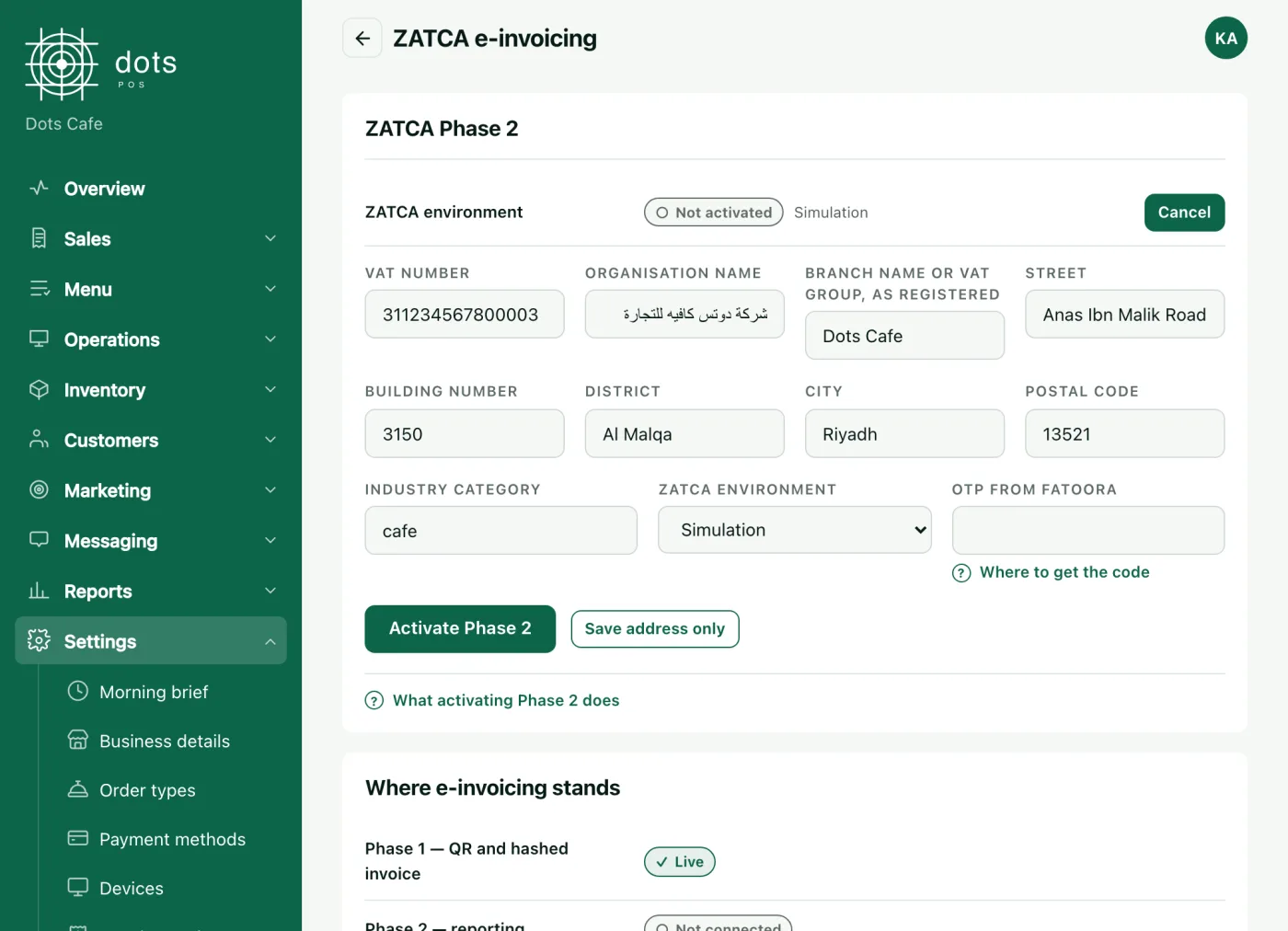
- In the dashboard open Settings, then Integrations, and press "Set up Phase 2" on the "ZATCA e-invoicing" card.
- Press "Activate Phase 2" and check the details filled in from your business and branch.
- Under "ZATCA environment", choose "Production".
- In the Fatoora portal press "Onboard new solution unit/device" and copy the 6-digit code.
- Paste it into "OTP from Fatoora" and press "Activate Phase 2".
How you know it worked
The status reads "Signing and reporting" with the certificate’s expiry date, and the ZATCA card reads "Phase 2 on". Invoices show under "Invoices": "Pending", then "Reported".
- Dots reports invoices to ZATCA in the background every minute.
- The QR code on the guest’s receipt becomes the signed Phase 2 code.
- Refunds and voids are sent as credit notes.
Renewing the certificate
Sixty days before the certificate expires, a warning shows on the ZATCA page. Press "Renew certificate" with a new code, made in the Fatoora portal under "Renewing Existing Cryptographic Stamp Identifier (CSID)". If it expires first, selling goes on with Phase 1 invoices, and nothing is reported until you renew.
Questions
Do I need a code for each POS or branch?
No. Dots uses one certificate and one code for the whole business, covering every POS in every branch.
What if the internet drops after it is on?
Selling goes on. Each sale is signed when it reaches Dots, then reported in the background.
Who can switch on Phase 2?
The owner account only.
Source: The "ZATCA e-invoicing" page in the dots dashboard, and the Fatoora portal.