In this page
In short
- Network receipt printers on port 9100: the POS finds them on the same Wi-Fi, or you type the address.
- "Customer receipts" makes a printer the receipt printer, and the cash drawer opens from it.
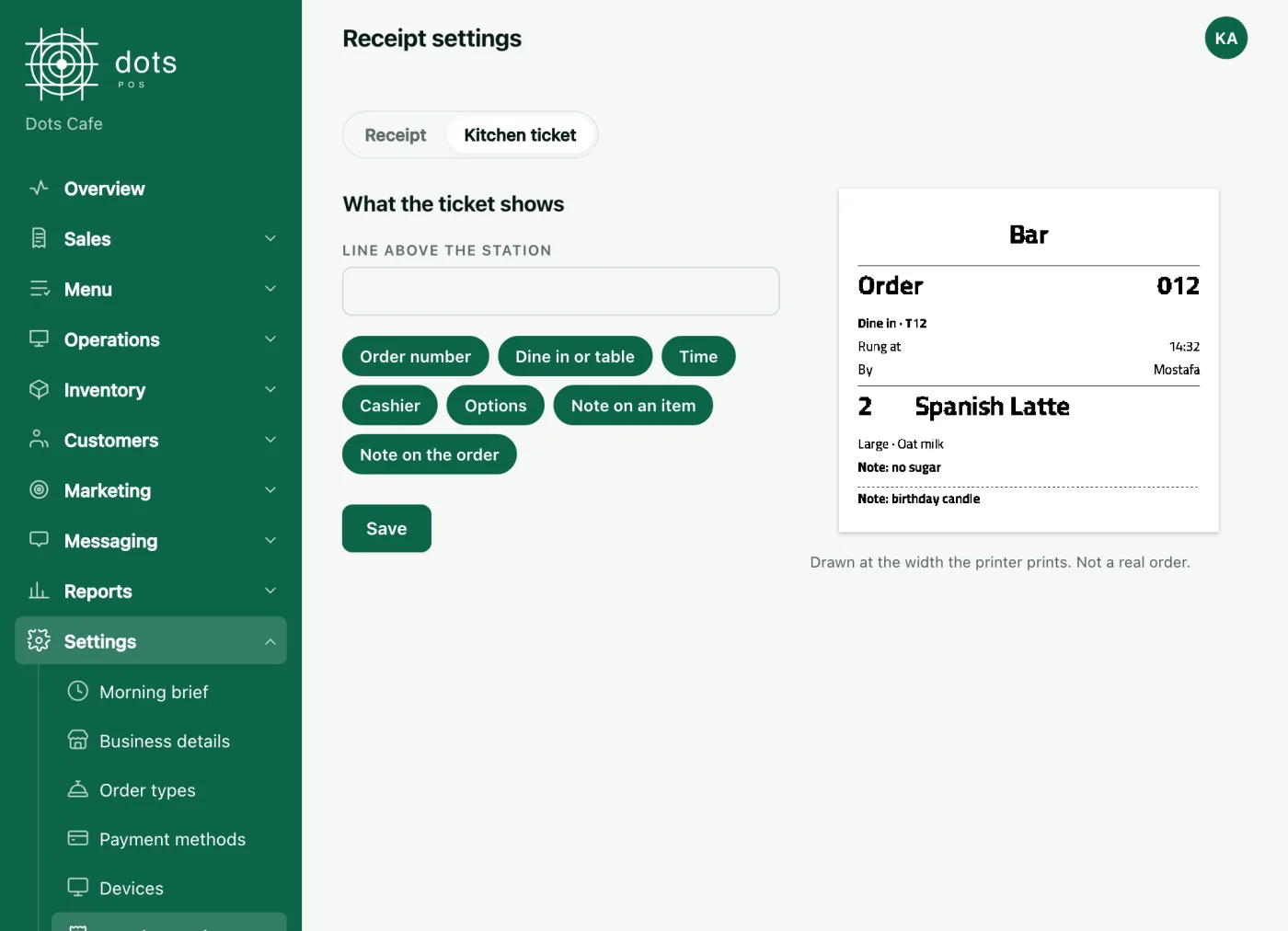
- Kitchen tickets come out of the printer paired with each station; stations are made on the dashboard.
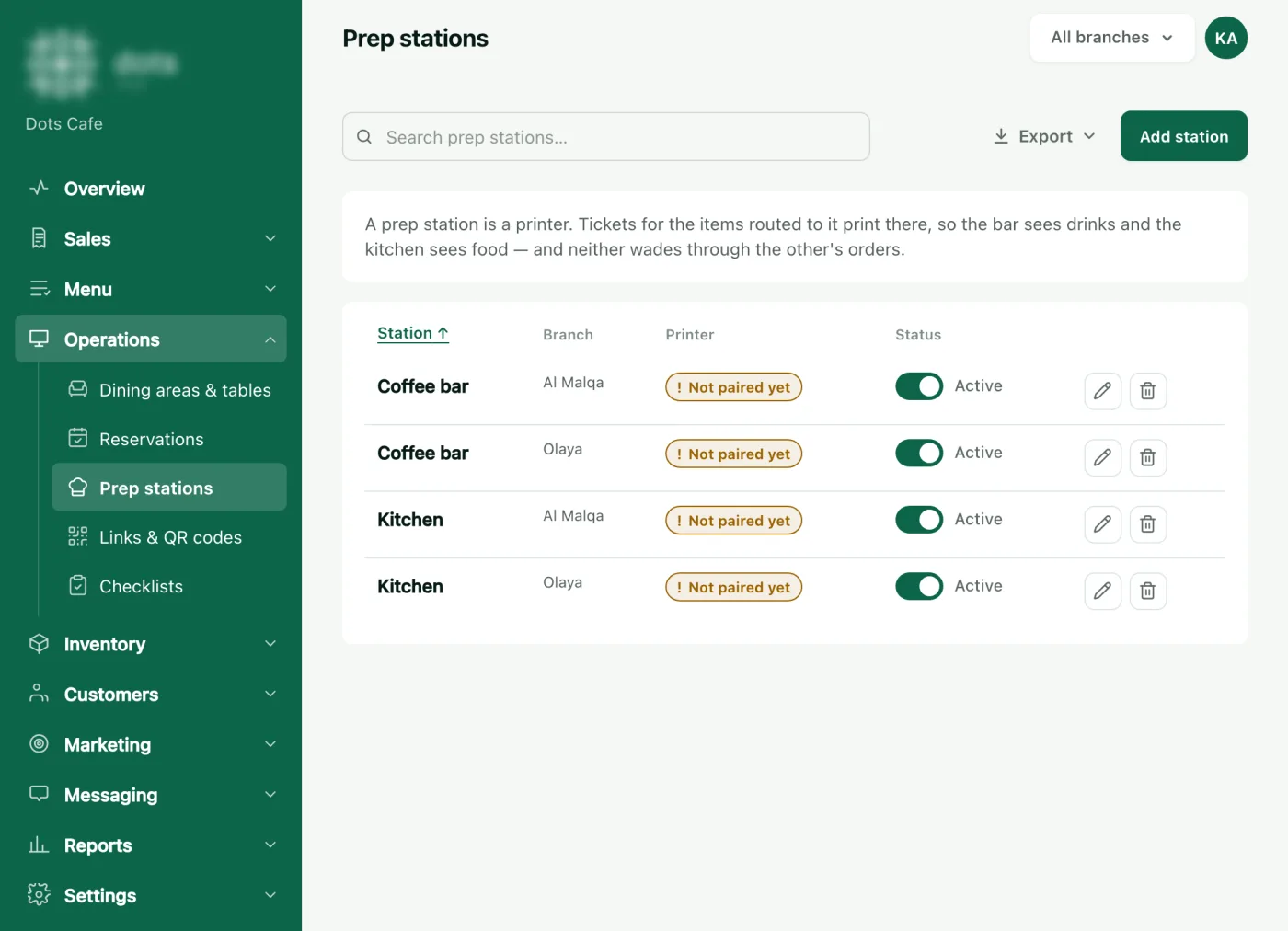
Make the prep stations
- On the dashboard: Operations › Prep stations › "Add station".
- Choose the "Branch", write the "Station" name, such as Kitchen or Bar, and save.
- On each item, choose its station under "Made at" for each branch.
Add the printer on the POS
- On the POS: Settings › Printing › Printers, and press "Find printers".
- Pick the printer from the list. If it is not there, type its address under "Not in the list? Type its address".
- Write the "Name" and choose the "Paper": 80 or 58 mm.
- For the receipt printer, switch on "Customer receipts", and if the drawer is plugged into it, "Cash drawer on this printer".
- Press "Save", then "Test print".
The printer prints its address on a slip if you hold Feed while you switch it on.
Pair each station with its printer
- On the POS: Settings › Kitchen stations.
- Pick each station’s printer; the choice saves at once.
The pairing is kept for the whole branch, but each POS prints through the printers in its own list. So add the kitchen printer on every POS that prints its tickets.
If it does not print
- A printer never stops a sale, and the POS warns you if a kitchen printer did not answer.
- An item with no station gets no kitchen ticket; it shows on the receipt only.
- The drawer opens on cash payments only, and from "Open drawer" on the printer’s card.
Questions
The search found no printer?
Check the printer is on and on the same router as the POS, or type its address from the slip it prints at power-on.
Do items made at the counter need a station?
No. Leave them on "The cashier printer": they get no kitchen ticket and show on the receipt.
Does selling stop if the printer fails?
No. The sale goes through, and the screen tells you what did not print.
Source: The Printers and Kitchen stations screens on the dots POS, and the Prep stations page in the dashboard.